
Try our Free YouTube Transcript Generator to get any YouTube transcript in seconds. Compare it with YouTube’s built-in tool and pick what fits your workflow.
Free YouTube Transcript Generator: 3 Easy Ways to Get Any YouTube Transcript in 2026
A Free YouTube Transcript Generator is the fastest way to turn any YouTube video into clean, usable text, whether you need it for a blog post, a research note, subtitles, or just to skim content faster than watching it. You don’t need paid software or a browser extension full of ads. This guide covers every practical way to get one, including when a dedicated YouTube transcriber tool is worth using instead of YouTube’s own feature.
Video is a slow medium to search. A ten-minute clip might contain one sentence you actually need, and scrubbing through it wastes more time than reading would. Turning the video into text solves that instantly: you can Ctrl+F a transcript, paste it into a summarizer, or drop a quote into an article with the exact wording intact.
What Is a YouTube Transcript?
A YouTube transcript is a plain text (or timestamped) version of everything spoken in a video. It’s different from “captions” or “subtitles,” which are the same text formatted for on screen display in short, timed chunks (usually as an .srt or .vtt file). Most tools that generate a transcript can also export captions, since both come from the same source: YouTube’s auto generated captions or a creator’s uploaded caption file. (For background on how YouTube’s own captions work, see YouTube’s official Help Center.)
Think of the caption file as the raw material and the transcript as the finished product. Captions are chopped into short lines synced to audio timing, with line breaks that make sense for a video player but not for reading. A transcript generator takes that same data, strips out the timing information, and reflows it into normal paragraphs.
Method 1: YouTube’s Built-In Transcript Feature (Free, No Tools Needed)
Every video with captions available has a built in transcript viewer. Here’s how to use it:
- Open the video on YouTube (desktop site, not the app).
- Click the three dot menu (⋯) below the video, next to the Save/Share buttons.
- Select “Show transcript.”
- A panel opens on the right with the full timestamped transcript. Click the three dot menu inside that panel to toggle timestamps on or off.
- Select all the text (Ctrl+A / Cmd+A inside the panel) and copy it.
Limitation: this only works if the video has captions enabled, and it pastes as one dense block of text with timestamps mixed in. You’ll need to clean it up manually before using it anywhere. It’s also entirely manual — there’s no way to batch this across several videos, and nothing formats the text into paragraphs for you. For a single quick check, it’s fine; for anything you plan to reuse or publish, it creates extra cleanup work.
Method 2: Free YouTube Transcript Generator (Recommended)
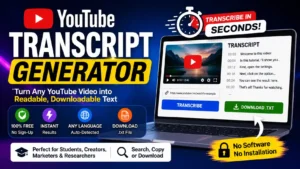
If you want clean, ready to use text without manually stripping timestamps, a dedicated Free YouTube Transcript Generator does the job in one step: paste the video URL, get the text. Our own free YouTube Transcript Generator works this way. No sign up, no watermark, and no limit on video length.
- Copy the YouTube video URL from the address bar.
- Paste it into the tool and generate the transcript.
- Copy the clean text, or download it directly. No manual timestamp removal needed.
This approach is best when you plan to reuse the transcript elsewhere: repurposing a video into a blog post, feeding it to an AI summarizer, or archiving a lecture. It’s also more practical if you’re working through several videos in a row — a channel’s back catalog, a playlist of lectures, or a batch of client videos — since you’re not re-copying text from the same menu every time. Because the output is already plain paragraphs, it drops straight into a word processor, a notes app, or an AI prompt without extra formatting work.
Method 3: Using a YouTube Transcriber for Subtitles (SRT/VTT)
If you specifically need an .srt or .vtt subtitle file, for example to burn subtitles into a video edit, you’ll want the raw caption file rather than plain text. This calls for a YouTube transcriber built for caption extraction rather than the built in YouTube panel, since YouTube itself doesn’t offer a direct subtitle download button in its normal interface.
This is a fundamentally different job from the two methods above. Plain text is for reading; a subtitle file is for a video editor to display on screen, so it needs to preserve exact timing. If you try to fake this by manually retyping timestamps into an .srt file, you’ll end up with subtitles that drift out of sync as the video goes on. A transcriber that exports .srt or .vtt directly keeps the original timing intact — the right tool whether you’re subtitling a video for re-upload, adding captions to a course, or localizing content for a different audience.
Which YouTube Transcript Method Should You Use?
| Need | Best Method |
|---|---|
| Quick read of what’s said, no formatting needed | YouTube’s built in transcript panel |
| Clean text for blogging, notes, or AI tools | A Free YouTube Transcript Generator |
| Subtitle file (.srt/.vtt) for video editing | A dedicated YouTube transcriber tool |
If you’re not sure which row applies to you, ask what happens to the output next. Going into a document, a summary, or a search you’ll run later means you want plain text. Going back onto a video as an overlay means you want a timed subtitle file. Mixing the two up is the most common reason people end up redoing the work.
FAQs About YouTube Transcript and YouTube Transcriber Tools
Is it legal to get a transcript of a YouTube video?
Generating a transcript for personal use, research, or note taking is generally fine. Republishing a transcript in full without permission can raise copyright concerns, especially for scripted or monetized content. When in doubt, quote short excerpts and credit the source rather than reposting the entire text.
Does every YouTube video have a transcript available?
No. A transcript is only available if the video has captions, either auto generated by YouTube or manually uploaded by the creator. Livestreams and some very new uploads may not have captions ready yet.
How accurate are auto generated transcripts?
Auto generated captions are usually 85 to 95 percent accurate for clear, single speaker English audio, but accuracy drops with background noise, accents, overlapping speakers, or technical jargon. For anything you’ll publish, it’s worth a quick read through to fix obvious errors, particularly around names and numbers.
Can I get a YouTube transcript in a language other than the video’s audio?
YouTube’s auto translate feature can convert captions into dozens of languages, but the translation is machine generated and quality varies. For accuracy, generate the transcript in the video’s original language first, then translate separately if needed.
Which method is fastest if I only need one quote from a video?
YouTube’s built in panel is usually quickest for a single lookup, since there’s nothing to paste a URL into. Once you need more than one video, or want the text cleaned up and downloadable, a dedicated generator saves more time than it costs.