
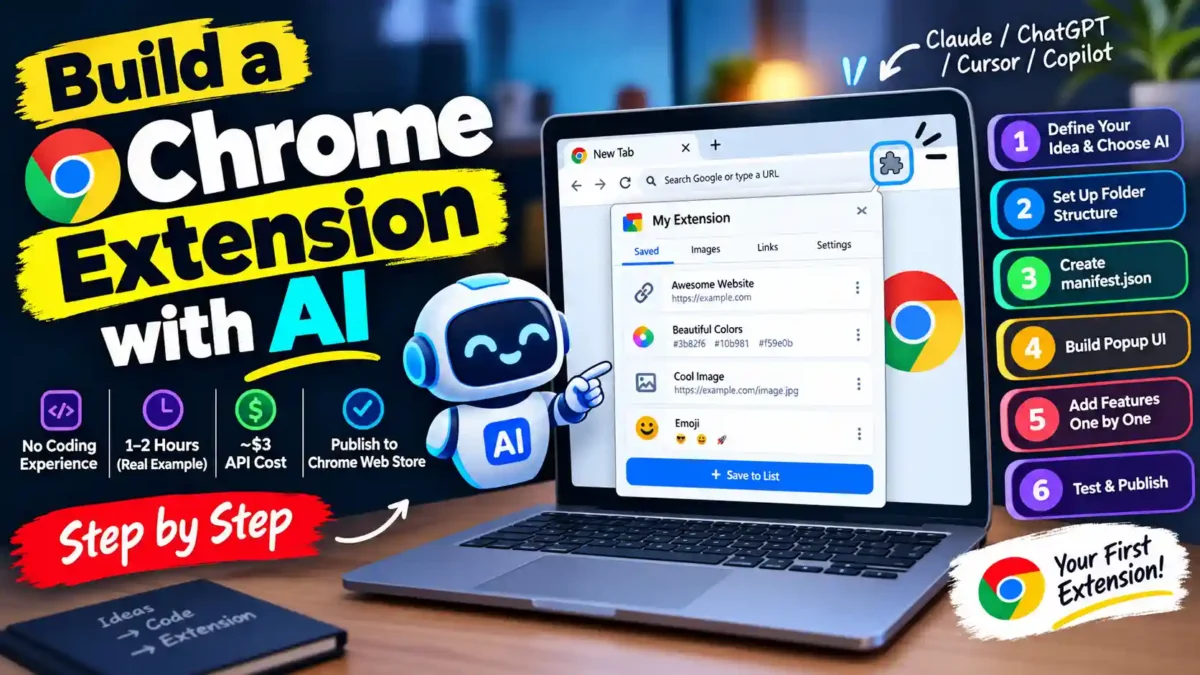

If you want to know how to build a Chrome extension with AI, the short version is this: you don’t need to know JavaScript going in, but you do need to break the project into small pieces and let the AI handle one piece at a time. That’s the actual difference between people who end up with a working extension and people who end up with a folder of broken files.
Chrome extensions are small, self-contained pieces of software. No server, no database, no hosting bill. That makes them one of the easiest real products to ship with an AI coding assistant doing most of the typing, and it’s why so many non-developers are publishing their first extension this year using tools like Claude, Cursor, or GitHub Copilot instead of a coding bootcamp.
This guide walks you through the entire process, from defining the problem to publishing on the Chrome Web Store. It includes real examples, cost breakdowns, common pitfalls, and a step-by-step workflow that actually works when you’re relying on AI to write the code.
What You Need Before You Start
The setup is lighter than most people expect. You don’t need Chrome extension experience, and you don’t need a paid course.
- A code editor (Visual Studio Code is free and works fine)
- An AI coding tool: Claude, ChatGPT, Cline, Cursor, or GitHub Copilot
- A Google account for the Chrome Web Store, plus a one-time $5 developer registration fee if you plan to publish (development itself is free)
- A clear idea of the one problem your extension solves
That last point matters more than the tooling. A vague idea like “something to help me browse better” produces vague, generic code. A specific idea like “save the color, link, and title of the page I’m on to a local list” produces code that actually works on the first or second try.
Real-world example: A freelance designer wanted to save color palettes from websites. Instead of asking AI for “a design tool extension,” she wrote: “Create a Chrome extension that lets me click a button, grab the hex color of any element I hover over, and save it to a list in the popup.” That specificity meant the AI generated a working manifest, popup, and content script in three prompts. The extension was live in the Web Store within a week.
How Long Does It Actually Take to Build a Chrome Extension With AI?
For a simple, single-purpose extension, plan on somewhere between one and a few hours of active work, spread across the steps below. One developer documented building a fully working extension, complete with tabs for links, colors, images, and emojis, in about 60 minutes of AI-assisted coding, at a total API cost of roughly $3. That’s an outlier on the fast end, but it shows what’s realistic when the scope stays tight and each feature is built separately.
READ MORE
If you’re completely new to code, add a few extra hours for reading and testing. The AI writes the code, but you still need to understand what it does well enough to spot when something is wrong.
Step 1: Define the Problem and Pick Your AI Tool
Before opening any editor, write one sentence describing exactly what the extension does. “Lets me highlight text on any page and save it to a running list” is specific enough for AI to work with. “A productivity extension” is not.
For the AI tool itself, you have real options now. Claude (through the Claude.ai chat interface, or through an agentic tool like Cline or Claude Code) tends to produce Chrome extension code that runs correctly on the first pass more often than not.
ChatGPT is a solid alternative and will usually hand you working files too. Gemini is more likely to explain the architecture and hand you a prompt to paste somewhere else instead of just writing the code, which is a real friction point worth knowing about before you pick a tool.
Tool comparison at a glance:
| Tool | Best for | Trade-off | Cost |
|---|---|---|---|
| Claude (chat or Claude Code) | Writing working extension code directly, first try | Terminal-based Claude Code has a learning curve for non-developers | Free tier available; Pro $20/month |
| Cline (VS Code + Claude API) | Editing files directly inside your project folder | Requires an Anthropic API key and pay-as-you-go billing | Pay per token, roughly $3–$10 per project |
| Cursor | A full AI-native editor with visual diffs | Separate paid app, not just a chat window | Free tier; Pro $20/month |
| GitHub Copilot | Budget-friendly option inside an editor you may already use | Weaker at planning a whole extension from scratch in one go | $10/month or $100/year |
| ChatGPT | Quick prototypes and explaining Chrome APIs in plain language | Still benefits from the same small-chunk approach as the others | Free tier; Plus $20/month |
Step 2: Set Up Your Development Folder
Create a folder on your computer and open it in your code editor. A typical Chrome extension only needs a handful of files: a manifest.json configuration file, a popup folder with HTML, CSS, and JavaScript for the interface, and an icons folder with a few sizes of your logo. Ask your AI tool to lay out this folder structure for you before writing any actual code, so you both agree on where things live.
A standard structure looks like this:
my-extension/
├── manifest.json
├── popup/
│   ├── popup.html
│   ├── popup.css
│   └── popup.js
├── content/
│   └── content.js
├── background/
│   └── background.js
└── icons/
    ├── icon16.png
    ├── icon48.png
    └── icon128.png
Not every extension needs all of these. A simple one might only need manifest.json and a popup. But having a clear structure from the start prevents confusion later.
Step 3: Ask AI to Generate the Manifest File
The manifest.json file is the extension’s configuration file: it names your extension, sets its version, and lists exactly which browser permissions it needs. Every Chrome extension published today has to use Manifest V3, since Google finished retiring the older Manifest V2 format in early 2025 and no longer accepts new V2 submissions. You can read Google’s own extensions and AI documentation if you want the technical detail behind this.
Ask your AI tool for a manifest.json scoped to exactly what your extension does. This is one spot where being specific pays off directly: if you only need to read the active tab, tell it that, rather than letting it default to broad permissions. Chrome reviewers reject a meaningful share of first submissions specifically because the manifest requests permissions the code never actually uses.
Example prompt: “Write a manifest.json for a Chrome extension called ‘Color Saver’ that needs to read the active tab’s URL and title, and store data locally. Use Manifest V3. Request only the permissions necessary.”
The AI should return something like:
{
  "manifest_version": 3,
  "name": "Color Saver",
  "version": "1.0",
  "description": "Save colors from any webpage.",
  "permissions": ["activeTab", "storage"],
  "action": {
    "default_popup": "popup/popup.html",
    "default_icon": "icons/icon48.png"
  },
  "icons": {
    "16": "icons/icon16.png",
    "48": "icons/icon48.png",
    "128": "icons/icon128.png"
  }
}
Notice how it only requests activeTab and storage. That’s the kind of narrow permission set that keeps reviewers happy.
Step 4: Build the Popup Interface
The popup is the small window that opens when someone clicks your extension’s icon in the toolbar. Describe the layout you want in plain language (tabs, buttons, a text field, whatever fits your idea) and let the AI generate the HTML and CSS. Review what it gives you before moving on. It’s much easier to catch a layout problem now than after five more features are stacked on top of it.
Example prompt: “Create a popup.html with a simple list of saved colors, a button to add the current page’s color, and a delete button next to each item. Use clean, minimal CSS.”
Test the popup by loading the extension in Chrome (see Step 6). Even if it doesn’t have functionality yet, you should be able to open the popup and see the layout.
Step 5: Add Functionality One Feature at a Time
This is the step that decides whether your project works. Ask for one feature, test it, then ask for the next one. Requesting an entire multi-feature extension in a single prompt is the single most common reason people give up on building a Chrome extension with AI, because the model runs out of room to reason carefully and starts inventing methods and APIs that don’t exist.
Break even a “simple” feature into its actual steps. For a save-to-list feature, that means: grab the current tab’s data, read what’s already stored, add the new item, save it back, then refresh the display. Ask for each piece, confirm it works, and only then move forward. This is slower on paper and dramatically faster in practice, since you’re not debugging four broken features at once.
Example feature breakdown for a “save color” extension:
- Get the active tab’s URL and title. Prompt: “Write a function that uses chrome.tabs.query to get the active tab’s URL and title.”
- Read existing saved items from storage. Prompt: “Write a function that reads an array called ‘savedColors’ from chrome.storage.local.”
- Add a new item to the array. Prompt: “Write a function that takes a color value, adds it to the savedColors array, and saves it back to chrome.storage.local.”
- Display the list in the popup. Prompt: “Write a function that reads savedColors from storage and renders them as a list in the popup.”
- Add a delete button. Prompt: “Add a delete button next to each item that removes it from the array and re-renders the list.”
Test after each step. If something breaks, paste the error message back into the AI and ask for a fix. This iterative loop is how you build a working extension without understanding every line of code yourself.
Step 6: Test the Extension Locally in Chrome
Open chrome://extensions in your browser, turn on Developer Mode in the top right, and click “Load unpacked.” Select your project folder and Chrome will install the extension immediately, no store review needed. Click the icon, try every feature, and paste any error messages straight back to your AI tool. This local loop is where you’ll catch most bugs, and it costs nothing but time.
Debugging tips:
- Right-click the extension’s popup and choose “Inspect” to open DevTools for the popup.
- For content scripts, open DevTools on the page itself and check the Console tab.
- For background scripts, go to
chrome://extensions, find your extension, and click “service worker” to inspect it. - If the extension doesn’t update after a code change, click the refresh icon on the extension card in
chrome://extensions.
Step 7: Publish to the Chrome Web Store
Once it works locally, register a Chrome Web Store developer account, pay the one-time $5 fee, and upload a ZIP of your extension folder along with a description, screenshots, and a privacy policy if your extension touches any user data.
New submissions from an established developer account typically clear review in a few business days; a brand-new account can take longer while Google evaluates its trustworthiness, so don’t publish the night before you need it live.
What you need for the store listing:
- A 128×128 icon and at least one 1280×800 screenshot.
- A short description (up to 132 characters) and a detailed description.
- A privacy policy URL if you collect any data. Even if you only store data locally, it’s good practice to state that.
- Category selection and language.
Which AI Tool Actually Works Best for This?
People default to whichever AI chat window they already have open, but the tools genuinely differ for this task. A recent head-to-head test had Claude, ChatGPT, and Gemini each build the identical Chrome extension from the same prompt.
Only one model handed over a folder that loaded and ran without edits; the others produced either broken code or, in Gemini’s case, an architecture writeup and a prompt to paste into a separate coding tool rather than the extension itself.
In my view, the tool matters less than the workflow around it. A March 2026 developer survey cited by NxCode found that roughly three in ten respondents run Cursor, Claude Code, and GitHub Copilot together, switching between them by task rather than picking a single winner.
For a first Chrome extension, that’s overkill. Pick one tool that writes working code on the first or second attempt, and stick with the small-chunk workflow described above rather than chasing a “better” model mid-project.
It’s also worth being honest about where these tools still fall short. Vague requests reliably produce generic, sometimes broken output no matter which model you use, and none of them reliably catch a Chrome Web Store policy violation before you submit. That part still needs a human reading the actual guidelines.
Common Mistakes to Avoid
READ MORE
- Asking for the entire extension in one giant prompt instead of feature by feature. Fix: break it down. One feature, one test, one confirmation.
- Requesting broad permissions “just in case,” which slows down store review and can trigger a rejection. Fix: only request what you actually use. If you don’t use it, remove it.
- Skipping local testing and uploading straight to the Web Store. Fix: always test with “Load unpacked” first. Store review is not a debugging tool.
- Forgetting a privacy policy when the extension stores or transmits any user data. Fix: write a simple one-page policy and link it in the store listing.
- Bumping the manifest version number without writing real release notes, which reads as suspicious to reviewers. Fix: write clear, honest release notes for every update.
- Using Manifest V2. Fix: use Manifest V3. V2 is no longer accepted.
- Ignoring error messages. Fix: paste them back into your AI tool and ask for a fix. Most errors are specific and easy to resolve.
How Much Does It Cost to Build and Publish?
| Item | Cost | Notes |
|---|---|---|
| Code editor | $0 | VS Code is free. |
| AI tool | $0–$20/month | Free tiers work. Paid plans remove limits. |
| API usage (if using Cline, etc.) | $3–$10 per project | Pay-as-you-go for Anthropic or OpenAI API. |
| Chrome Web Store registration | $5 one-time | Per developer account, not per extension. |
| Icons and screenshots | $0 | Canva or AI-generated images work. |
| Total first extension | $5–$25 | Most of the cost is optional AI subscriptions. |
Frequently Asked Questions
Do I need to know how to code to build a Chrome extension with AI?
No. You need to describe what you want clearly and test each piece as it’s built. Reading basic JavaScript helps you catch mistakes faster, but it isn’t required to finish a working extension.
How much does it cost to publish a Chrome extension?
Development is free. Publishing requires a one-time $5 Chrome Web Store developer registration fee per account, and that account can then publish multiple extensions without paying again.
Why did my AI-built extension stop working after I asked for more features?
This usually means too much was requested in one prompt. Roll back to the last working version, then add the next feature on its own, confirming it works before asking for another.
Can Gemini or ChatGPT build a Chrome extension as well as Claude?
They can produce working code, but testing has shown inconsistent results between models on identical prompts. Try a small test feature with whichever tool you’re considering before committing a full project to it.
How long does Chrome Web Store review take?
Simple extensions from an established developer account often clear review within a few business days. A brand-new developer account or an extension requesting sensitive permissions can take longer while Google verifies it.
What is Manifest V3 and why does it matter?
Manifest V3 is the current required format for Chrome extensions. It replaced Manifest V2, which Google retired in early 2025. New extensions must use V3. The manifest file tells Chrome what your extension does and what permissions it needs.
Do I need a privacy policy for my extension?
Yes, if your extension collects or transmits any user data. Even if you only store data locally, it’s good practice to state that clearly. The Chrome Web Store requires a privacy policy link for extensions that handle user data.
Can I make money from a Chrome extension?
Yes. You can charge for the extension directly, offer a freemium model with paid features, or use it to drive traffic to a paid service. Many developers use extensions as a lead magnet for consulting or other products.
Building a working Chrome extension with AI in 2026 comes down to scope and pacing more than raw model quality. Start with one clear problem, ask your AI tool for one piece at a time, test locally before you touch the Chrome Web Store, and keep your permissions as narrow as your extension actually needs.
If you’re weighing which AI coding tool to commit to for this, our breakdown of why ChatGPT prompts sometimes fail covers a lot of the same specificity problem that trips people up here, and if you like the idea of turning small AI-built tools into something people pay for, we’ve also covered how people are earning money from AI agent projects once they’re comfortable shipping something small like this.

You Might Also Like
Meta Muse AI Agent Review 2026: My Honest 2-Week Test Results

9 Open-Source Business Tools to Save Money and Grow

Crreo AI Free Plan Explained: Limits, Pricing Sources and How to Test It

Leave a Reply